Streaming video while traveling can be a challenge if you rely on spotty hotel Wi-Fi or expensive roaming plans. Using a dedicated travel eSIM allows you to maintain a consistent connection, but high-definition video consumption requires specific configuration to ensure you do not exhaust your data allowance prematurely. Understanding how to stream YouTube abroad: setting up your iNeedeSIM eSIM for uninterrupted video involves balancing your device settings with the network capabilities of your chosen data plan.
Verify eSIM Compatibility and Network Coverage
Before you depart, ensure your smartphone is carrier-unlocked and supports eSIM technology. Most modern flagship devices from the last five years include this functionality. You can check your device settings under the Cellular or Mobile Data menu to see if an Add eSIM option is available. If your phone is locked to a specific carrier, it will not accept a travel eSIM regardless of its technical capability.
Once compatibility is confirmed, check the coverage map for your destination. Travel eSIMs typically connect to local partner networks, which may vary in signal strength depending on whether you are in an urban center or a rural region. Reliable streaming depends on a stable 4G or 5G connection. If you are traveling to a remote area, prioritize plans that offer access to multiple local carrier networks to maintain a better signal.
Installation and Activation Steps
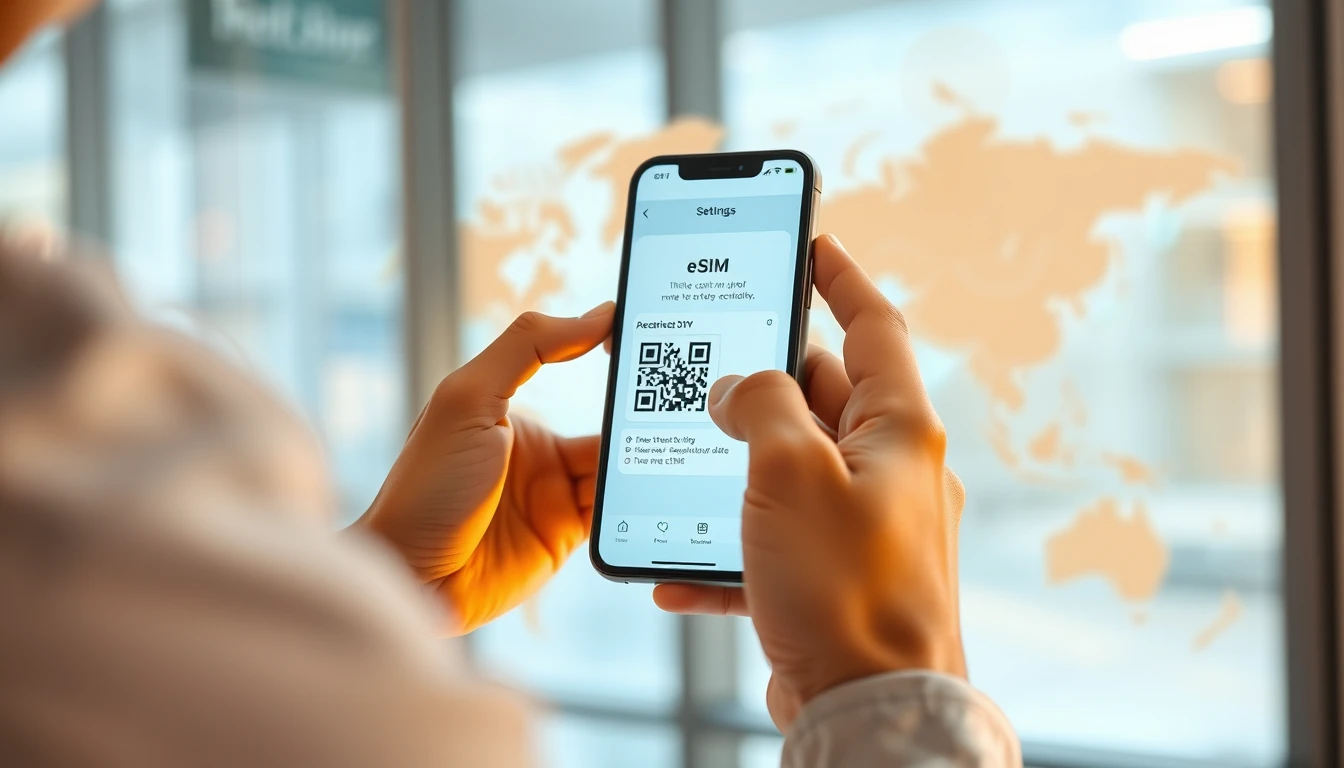
Proper setup is the foundation of a stable connection. When you purchase your plan, you will receive a QR code or manual activation details. You should perform the initial installation while you still have a stable home internet connection, even if the eSIM is designed to activate only upon arrival at your destination.
- Go to your phone settings and select Mobile Data or Cellular.
- Tap Add eSIM and scan the QR code provided by ineedesim.
- Label your eSIM clearly so you can differentiate it from your primary home SIM.
- Ensure Data Roaming is turned ON for the eSIM, as this is required for the data service to function abroad.
- Set the eSIM as your primary source for Cellular Data.
Optimizing YouTube Settings for Data Efficiency
Streaming video is the most data-intensive activity you can perform on a mobile network. A single hour of 1080p video can consume between 1.5GB and 3GB of data. To make your data package last longer, you must manage the quality settings within the YouTube application itself rather than relying on the default auto-adjust feature.
Open the YouTube app and tap on your profile icon, then navigate to Settings and Video Quality Preferences. Select Data Saver mode to ensure the app automatically defaults to lower resolutions when using mobile data. You can also manually override the quality on a per-video basis by tapping the gear icon on the player screen and selecting 480p or 720p. These resolutions are generally sufficient for mobile screens while significantly reducing your hourly data consumption.
Managing Hotspot and Background Data
If you intend to stream YouTube on a laptop or tablet using your phone as a hotspot, be aware that these devices often treat the connection as a desktop network. This can lead to background updates and high-resolution video streams that deplete your eSIM balance rapidly. Always disable automatic system updates and cloud syncing on your secondary devices before connecting to your mobile hotspot.
On your smartphone, check your background data usage settings. Many apps consume data in the background even when you are not actively using them. Restricting background data for non-essential applications prevents your eSIM from being drained by software updates or social media refreshes, leaving more capacity for your video streaming needs.
Troubleshooting Connectivity Issues
If you experience buffering or a complete loss of signal, the first step is to toggle Airplane Mode on and off. This forces your device to re-establish a handshake with the nearest cell tower. If the issue persists, manually select a network in your Cellular settings instead of leaving it on automatic. Sometimes, a specific local provider may have better bandwidth for streaming than others.
If you encounter persistent problems, visit ineedesim to review our troubleshooting guides or contact support. Ensure your APN settings are configured correctly, as incorrect APN information is a common cause of data failure after a successful eSIM installation. Always verify that your data plan has not reached its fair usage policy limit, as some carriers may throttle speeds after a certain amount of high-speed data is consumed.
Frequently asked questions
Can I use my eSIM for voice calls while streaming?
Most travel eSIMs are data-only, meaning they do not provide a traditional phone number for cellular calls. You can still use VoIP services like WhatsApp or FaceTime to make calls over your data connection while streaming.
How much data do I need for a week of travel?
For casual web browsing and occasional video streaming at lower resolutions, 5GB to 10GB is usually sufficient for a week. If you plan on watching several hours of high-definition video daily, consider selecting an unlimited or high-cap data plan.
Will my eSIM work on multiple devices?
The eSIM is tied to the specific device where it is installed and cannot be moved easily between phones. You should install the eSIM on the device you intend to use as your primary connection or hotspot source.
Need data for your trip?
Browse eSIM plans for 190+ destinations — instant QR delivery.
Browse destinations